> For the complete documentation index, see [llms.txt](https://joaos-organization-3.gitbook.io/jpresources-documentation/llms.txt). Markdown versions of documentation pages are available by appending `.md` to page URLs; this page is available as [Markdown](https://joaos-organization-3.gitbook.io/jpresources-documentation/installation/phone-system/translations.md).
# Translations
Originally we have eleven versions available, EN, FR, BG, PT, RU, TR, DE, CH, JP, SW, ES & PL.
## Config Translations
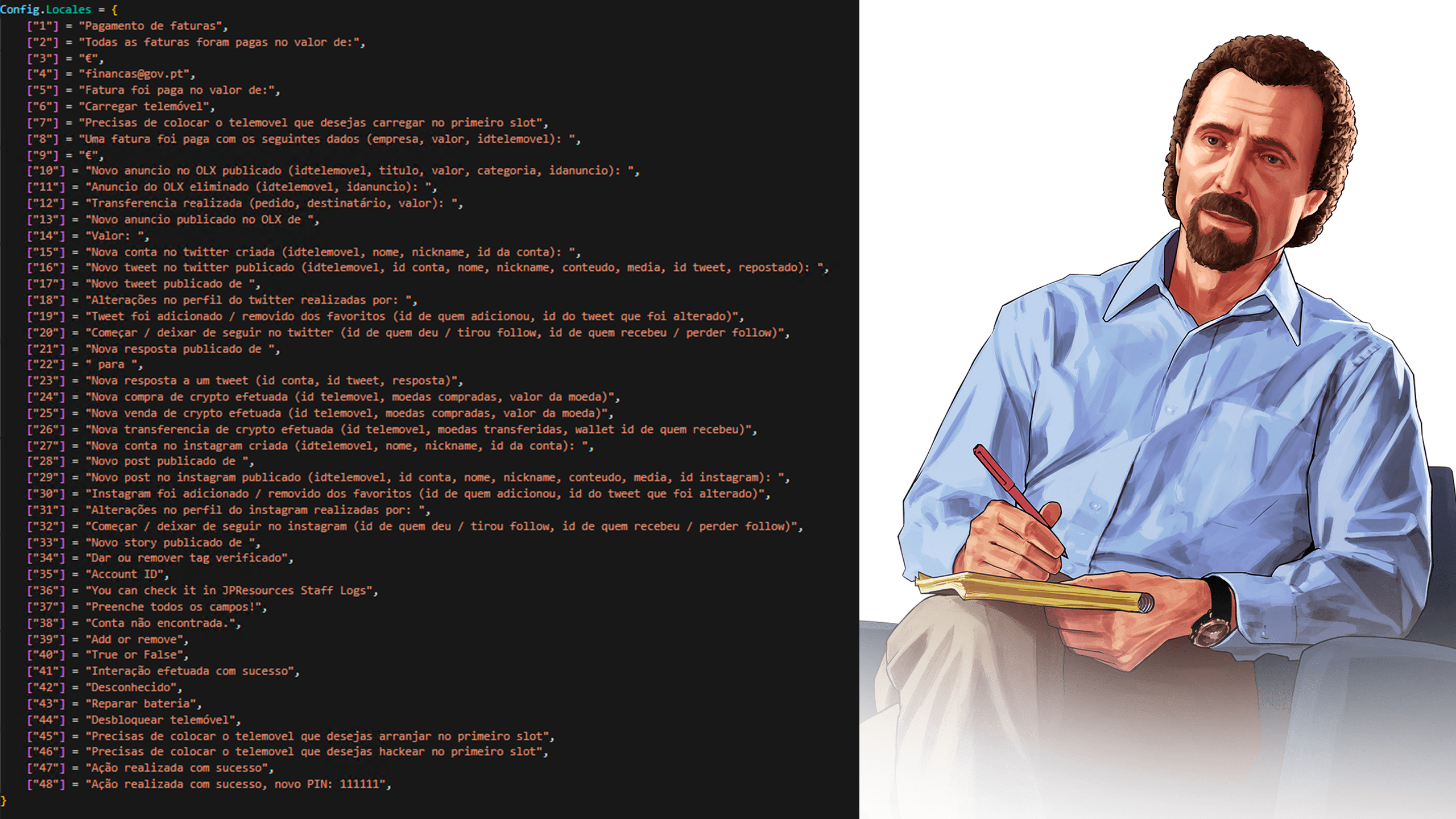
The JPR Phone System allows you to translate easily, starting with `config.lua`.\
This will affect the system notifications and log system.
## JavaScript and HTML Translations
The JPR Phone System allows you to easily translate JS Files and HTML File, even if they are with closed-source, open the `translate.js` file, you can also add new languages and help us to we support them on future, that way you will not need to redo everytime we update the file.\
This will affect all UI of Phone System.
## How to add a new language
**STEP 1**
Open **jpr-phonesystem > html > index.html,** and locate:
```html
```
This is the phone setup languages listage, you will see all the default languages, to add a new one you just need to follow the example:
```html
Spain
```
As you can see, white color means label, is what player will see listed on his phone, **data-linguagem** is the language identifier, this is super important, you will need this later!
**STEP 2**
Open **jpr-phonesystem > html > index.html,** and locate:
<select name="linguagensdefs" id="linguagensdefs"
This is language selection in settings app, again you will see all default languages listed, just add yours, like example:
```html
```
As you can see, white color means label, is what player will see listed on his phone, **value** is the language identifier, this is super important, it should be equal to the previous one on **STEP 1**!
**STEP 3**
Perfect, you are almost there!
Your new language is already being displayed into the phone, now you just need to add the translations for it.
Open **jpr-phonesystem > html > js > translate.js** file:
This is two examples of translations, you need to add your new translation identifier (used in step 1 and 2) and the result, for example:
We added the **es** identifier (the one i used on step 1 and 2) with the translation.
Now you just need to repeat this last step on all translations!